Artlapse follows your canvas through the stream recording while you zoom, pan, rotate and flip it,
and rebuilds the painting from what it sees. Then it makes a short video of the painting coming together.
To do that it needs to know where to look, what to ignore and
what to rebuild: three kinds of box you draw on the video.
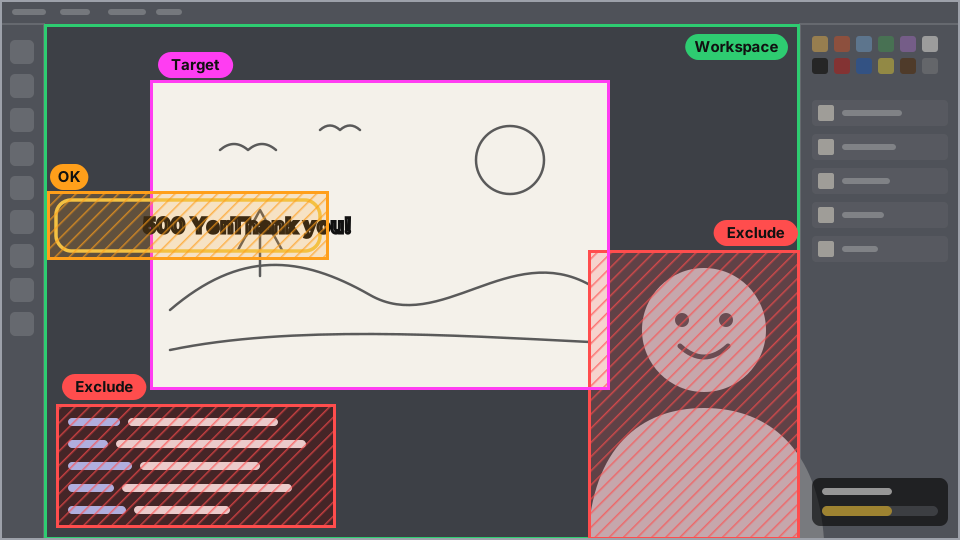
Workspace where you paint
The part of the screen where your art program shows the canvas. Artlapse looks for the canvas only inside it.
Leave out the program's menus, toolbars and panels.
Without a Workspace, the whole screen is used.
Exclude avatar, chat, etc.
Things on top of the canvas that stay there: your avatar, the chat, a webcam. Whatever is under
an exclusion is ignored, so it never gets painted into the timelapse. Draw as many as you need.
Brief things, like alerts or the cursor, need no box: they don't stay long enough to be painted in.
Target the canvas to rebuild
The part of the canvas to rebuild, usually all of it: the timelapse shows exactly this box, the way it
looks on the frame you draw it on. Pick a frame where the canvas is upright and not flipped, all of it is on
screen inside the Workspace, and little of it is under an exclusion. Near the end of the stream often
works: the painting is all there, so its edges are easy to see. The frame is marked on the timeline.
Start, End and cuts
No need to edit the recording first: when the stream shows something else, like a break screen or
another program, Artlapse sees the canvas is gone and leaves that part out automatically. Start, End and cuts
only make it faster, by leaving out what you know isn't painting, like the chatting before you start.
Drag the white handles on the timeline, or use the = now buttons under it. To cut out a part, press
✂ Cut from here where it begins and End the cut here where it ends; drag a cut's ends to change it.
The Target's frame can't be in a cut, or outside Start–End.
Making the timelapse
Once nothing is marked in red, press Make timelapse. It follows the canvas through the stream, rebuilds
the painting, then makes the video, all on this computer's graphics card; a long stream takes a while, so keep this tab open.
Made again after a change, it redoes only what the change affects: a new length only remakes the video.
Save the video before you close the tab: it isn't kept.
Mouse and keys
Drag on the video to draw a box with the chosen tool. Click a box to select it, then drag it to move it, or
drag its edges and corners. Del removes it, Esc deselects.
Space play and pause · ←→ 2 seconds · Shift+arrows 30 seconds ·
,. one frame